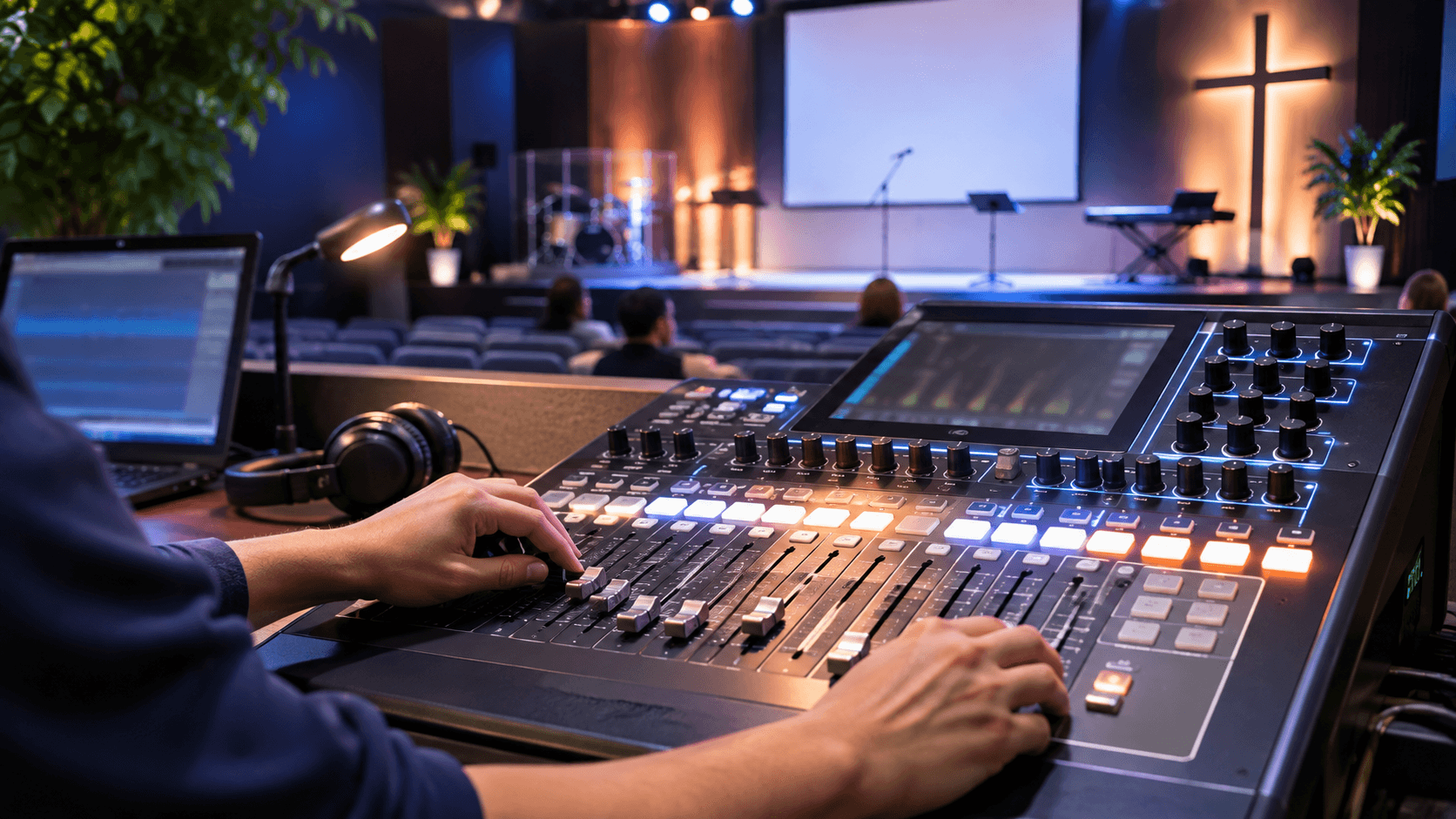
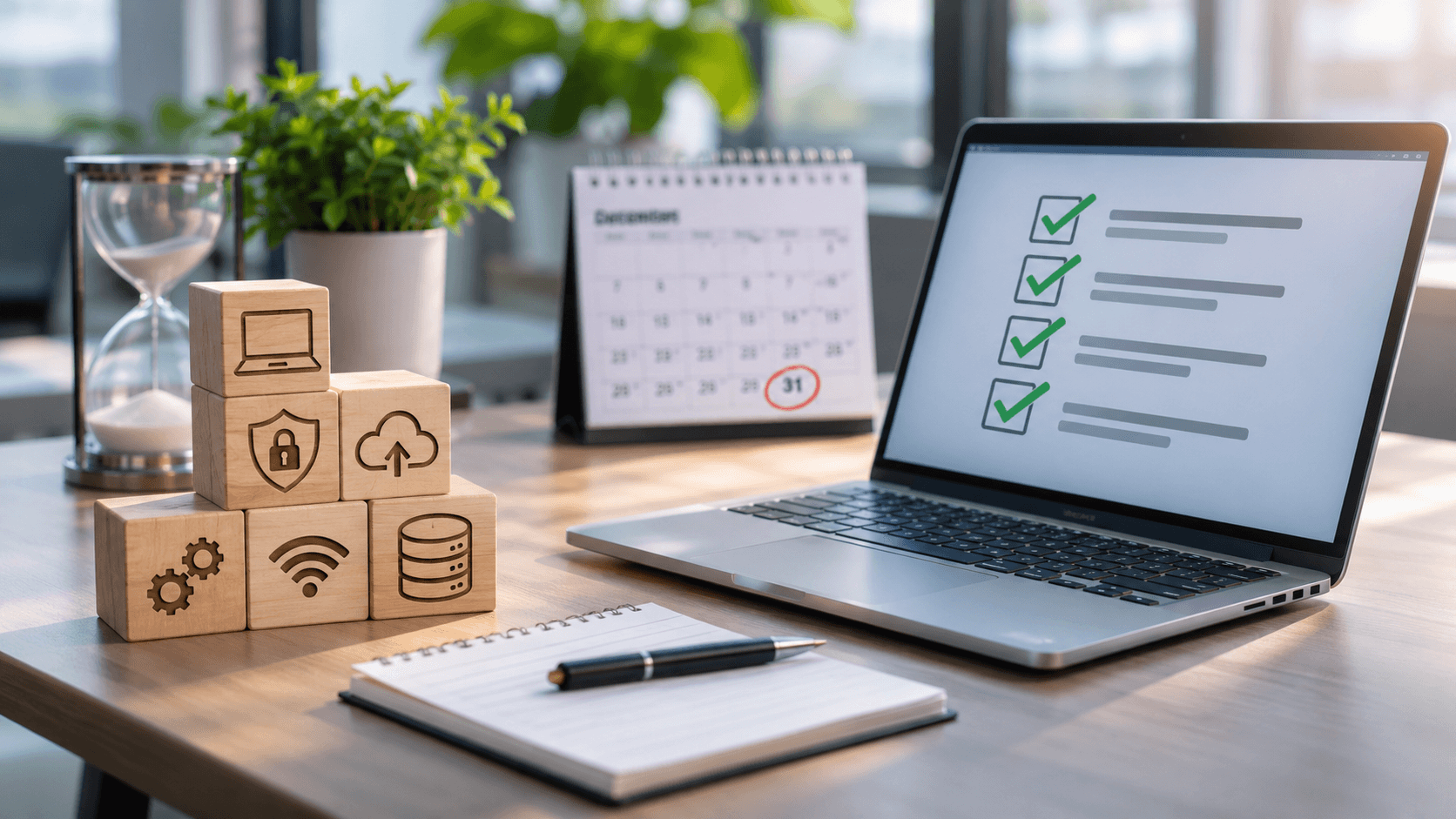
You’ve probably seen it happen. The meeting starts ten minutes late because no one can connect the screen. The pastor’s mic crackles during the most important part of the message. Meanwhile, the livestream chat fills with “We can’t hear you.” A simple AV checklist prevents most of these moments.
Good communication depends on more than good speakers. It also depends on reliable audio and video. In this article, you’ll learn what to check before every meeting or service, how to improve hybrid meetings, and how to keep livestreams clear, especially during busy Christmas services and year-end events.
Why AV Problems Matter More Than They Seem
Audio and video problems feel small in the moment. However, they shape how people experience your organization. A smooth meeting feels organized. A clear service feels welcoming. In contrast, a choppy livestream tells online visitors you weren’t really expecting them.
People rarely remember a technical problem as “the microphone battery died.” Instead, they remember that the meeting or service felt disorganized. The good news is that preparation prevents most of these issues.
Your Before-Every-Event AV Checklist
Use this AV checklist 10 to 30 minutes before any important meeting, service, or event:
- Power and batteries. Charge or replace wireless mic batteries, and keep labeled spares within reach.
- Sound check. Test every mic that will be used, at the volume it will actually be used.
- Screens and slides. Load presentations, lyrics, and videos early. Then confirm the main screen, not just the laptop, shows the right content.
- Video playback. Play the first few seconds of every video with sound so there are no surprises.
- Internet connection. For livestreams and video calls, use a wired connection whenever possible.
- One person in charge. Make sure someone knows they own the tech for this event.
Quick Check: Print this list, tape it to the sound booth or conference room table, and check items off every time.
How to Improve Audio in Hybrid Meetings
Hybrid meetings usually fail on audio, not video. Remote attendees can work with average video. However, they can’t work with voices they can’t hear.
Test From the Remote Side
The room may sound fine to the people sitting in it. Therefore, test how it sounds to someone joining online. Ask a coworker to join remotely for two minutes and tell you honestly what they hear. If your team uses Microsoft Teams, its built-in test call lets you record and play back a short message to check your mic and speakers. Microsoft explains how in its guide to managing audio settings in Teams meetings.
Set Up the Room for Remote Attendees
Place the camera so remote attendees see faces, not the backs of heads. In addition, post a simple “How to start a meeting” card next to the screen. That way, anyone can start a call without waiting for help. Teams also lets you choose your speaker, microphone, and noise suppression settings in its device settings.
A Church AV Checklist for Services and Livestreams
Christmas and Easter services bring the biggest crowds and the most pressure on volunteers. As a result, a written church AV checklist matters even more during these seasons.
- Create a one-page pre-service checklist and keep it at the sound booth.
- Do a full run-through with the band or speakers at least 30 minutes before doors open.
- Rehearse transitions, not just songs, since most hiccups happen between moments.
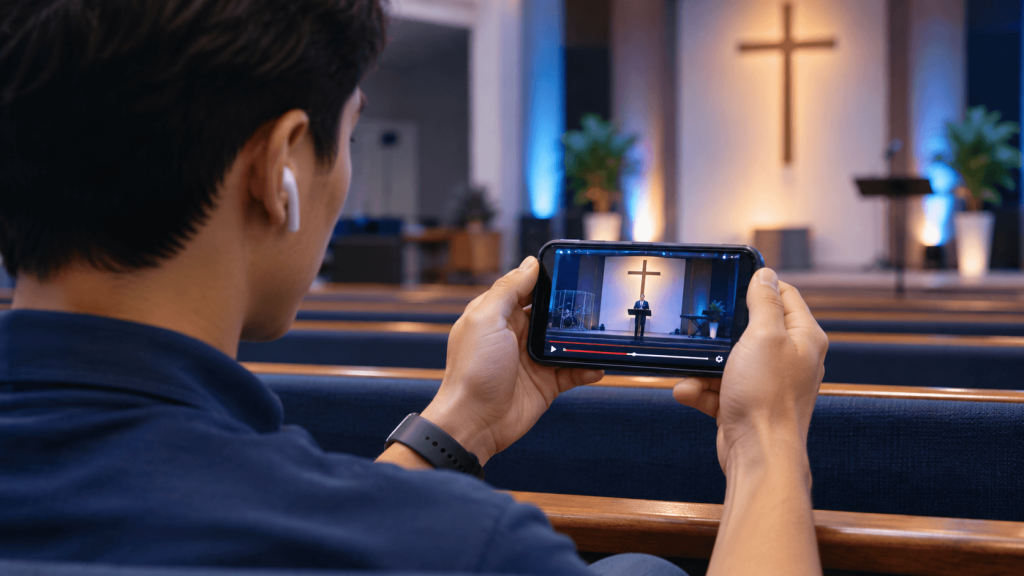
- Watch the livestream on a phone, with headphones, before you go live.
- Have a backup plan if the stream drops, such as posting the recording afterward.
For many visitors, the livestream is their first look at your church. So it’s worth treating your online audience like guests in the room. Our article on why your AV and streaming setup is an underrated growth tool explores this in more detail.
Review and Improve After Every Event
The most overlooked step in any AV checklist is the review. Watch five minutes of the recording, or ask two people how it sounded. Then write down one thing to fix next time.
Over a few months, these small improvements add up. Ultimately, your team will feel more confident, and your audience will notice the difference.
When to Upgrade Instead of Patch
Sometimes the problem isn’t preparation. Old equipment, poor speaker placement, or a room that was never designed for video can only be patched so far. If you fix the same problem every week, it may be time to plan an upgrade for 2027.
For churches, our House of Worship services cover sound systems, cameras, and streaming. For businesses, schools, and other organizations, our Commercial Services include A/V systems for meetings, presentations, and live events.
Final Thoughts
When your audio and video work, people hear the message instead of the problem. A short AV checklist, a clear owner, and a quick review after each event will make your meetings, services, and livestreams feel more professional and more welcoming.
Frequently Asked Questions
What should be on an AV checklist?
A basic AV checklist includes batteries, mic checks, screens and slides, video playback, a stable internet connection, and a named person in charge. Churches should also add a livestream check and a backup plan.
How early should a church do a sound check?
Aim to finish the full sound check and run-through at least 30 minutes before doors open. That leaves time to fix problems without rushing.
Why can’t remote attendees hear our meeting?
Usually, the room microphone is too far from the people speaking, or the wrong mic is selected. Test from the remote side before the meeting, and choose the correct devices in your meeting app’s audio settings.
How do we know if our livestream sounds good?
Watch it the way your viewers do: on a phone, with headphones. Listen for volume, echo, and clarity before you go live, and review a recording afterward.
Plan Clearer Meetings and Services for 2027
Planning AV or streaming improvements for the new year? No Limits Media helps churches and businesses design sound, video, and streaming setups that teams can run with confidence. Explore our Media Solutions, or visit nolimitsmedia.com to talk with our team.